A loan payoff calculator for Excel and Google Sheets that answers two questions: which of your loans should get your extra money, and would that money do better in savings? Put up to 8 auto, student, personal or 0% promo loans in one workbook and mix a monthly extra, dated lump sums and true bi-weekly payments on any of them. Then run one shared extra budget through three payoff orders, with each paid-off loan’s payment rolled over month by month, and compare paying extra against saving, after tax.
You have a car loan, a student loan, maybe a personal loan or a medical payment plan, and some money left over each month. A one-loan calculator tells you what an extra $100 does to one of them. It can’t tell you which loan should get it, what happens when a bonus lands in March, or whether that money would have earned more sitting in savings.
Three kinds of extra payment, on one loan
A recurring extra, a one-time lump sum and bi-weekly payments are not the same thing, and this workbook lets you mix all three on a single loan:
- A monthly extra added to the minimum, starting in the month you choose, and stopping by itself once the loan is gone.
- Lump sums — a tax refund, a bonus, something you sold — each tied to a loan and a month, as many per loan as you like, up to 30 in all. One dated after its loan is already paid off is flagged rather than quietly dropped.
- Bi-weekly, defined honestly — a half-payment every 14 days is 26 half-payments a year, which is one extra full payment. Paying half on the 1st and half on the 15th is not the same thing, and the guide explains the difference.
Each loan gets a 360-month schedule, minimums only against your plan, and the Dashboard gives you the payoff month, the months saved and the interest saved for every loan, with a year-by-year payoff timeline grid beside it. This plan pays each loan on its own: when one is paid off, its payment stops rather than rolling into the others — the rollover is what Payoff Order, below, adds. Loan Schedule shows any one loan in full.
The 0% promo cliff
Some store-card and medical payment plans advertise 0% interest with a catch: if any balance is left when the promo ends, the interest from the start is added all at once. Enter the month the promo ends and whether its interest is deferred, and the workbook computes that charge and flags it — on minimums only and on your plan. The Loans tab also shows the monthly payment that clears the promo before its deadline.
Which loan first — and watch the rollover happen
Payoff Order takes one shared extra budget and runs it three ways: highest rate first (avalanche), smallest balance first (snowball), and the order you set yourself. When a loan is paid off, its minimum payment rolls into the next loan on the list, and that handoff has its own column — “Rolled over this month” — for every order, every month, so you can see it rather than take it on trust.
Side by side you get each order’s total interest including any deferred-interest charge it triggers, the debt-free month, the month the first loan is gone, and a rank. In the fictional example household, at $250 a month plus the example lump sums, your own order costs $5,177 in interest against $5,450 for snowball and $5,964 for avalanche — because avalanche leaves the 0% plan for last and trips its deferred charge.
The comparison uses the shared budget and your lump sums; each loan’s own recurring extra and bi-weekly setting belong to the Dashboard’s plan, which never rolls a paid-off loan’s payment over. So the workbook shows two debt-free months on purpose — your plan’s, and the cheapest payoff order’s — and a line on the Dashboard states both. In the fictional example they are years apart, because only the payoff orders roll each freed-up payment into the next loan.
Pay extra or save it?
Paying a loan early earns, in effect, its interest rate — less if that interest is tax-deductible, as some student-loan interest is. Saving earns your annual percentage yield (APY), minus the tax on the interest. The Pay Extra or Save It tab compares two households with exactly the same money on the same month — one pays extra, one saves — at your APY and your tax rate, gives a plain answer, and works out the break-even savings rate where that answer would turn. A what-if table shows the verdict across a range of savings rates.
Make sure the extra money counts
Some servicers apply extra money to next month’s bill unless you tell them otherwise. The Extra-Payment Instructions & Log PDF has a ready-to-send request asking your lender to apply it to principal, what to check on your next statement, and a printable log for every extra payment.
Built so it keeps working
Nothing is locked. Every grid is already sized for 8 loans, 30 lump sums and 360 months, so there are no rows to insert and nothing to repair when your situation changes. The same layout builds the Excel file and the native Google Sheet, so the formulas you see in one are the formulas in the other.
It arrives with four fictional example loans already filled in, so every tab is working the moment you open it — then you type over them with the figures from your own statements.
Own it, don’t rent it: it is bought once, there is no account, and nothing renews. When a balance drops or a bonus lands, update the Loans tab and every answer moves with it.
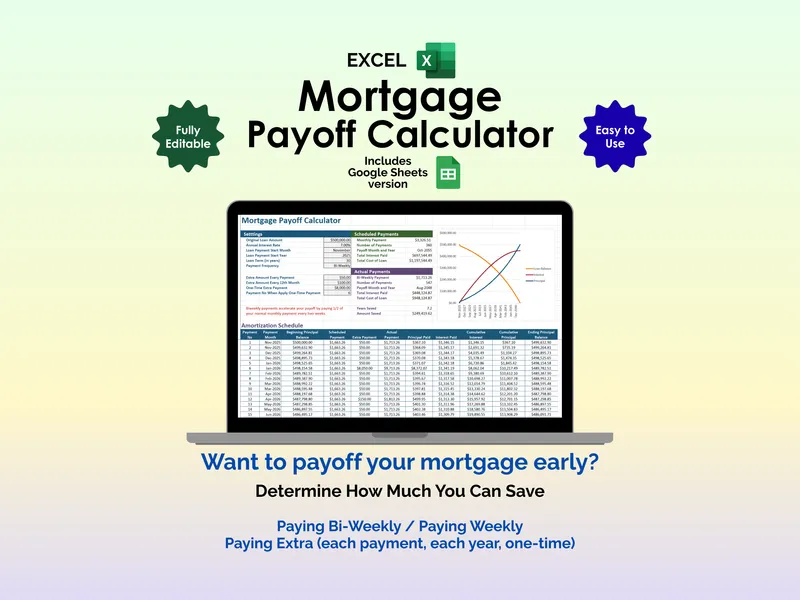
It is built for car, student, personal and 0% promo loans, and it isn’t a mortgage calculator: escrow, PMI and adjustable rates aren’t modeled. For a mortgage, use the Mortgage Payoff Calculator.
Try the free version first
Want a quick look first? The free Loan Extra-Payment Calculator shows what extra payments do to a single loan, no signup. This workbook is the full version: up to eight loans, the promo check, the three payoff orders with rollover, and pay-extra-or-save-it. Paying down a mortgage instead? The Mortgage Payoff Calculator is built for one home loan, and Spring Cleaning Your Finances explains the snowball and avalanche methods.