Excel and Google Sheets do the same fundamental job — rows, columns, formulas, charts — and for 90% of everyday tasks you genuinely cannot go wrong. The differences that matter aren't about features hardly anyone uses. They're about price, collaboration, where your files live, and how much raw horsepower you need. Get those four right and the rest follows.
The quick verdict
- Choose Excel if you work mostly solo, build detailed financial models, handle very large datasets, or want the deepest formula and charting toolset available offline.
- Choose Google Sheets if you want a free, install-free spreadsheet, you collaborate with other people in the same file, or you bounce between a laptop, phone and tablet.
- Honestly? Either is fine for budgets, trackers and planners. Pick the one that matches the device and the people you already use.
Side by side
| What matters | Excel | Google Sheets |
|---|---|---|
| Price | Paid — bundled with Microsoft 365 or a one-time Office license | Free with any Google account |
| Install | Desktop app (plus a lighter web version) | Runs in the browser, nothing to install |
| Real-time collaboration | Works, but smoothest only on the web/365 version | Built for it — multiple editors live, by default |
| Offline use | Excellent — full app, no connection needed | Limited — needs setup and a Chrome session |
| Large datasets | Handles hundreds of thousands of rows comfortably | Capped well below Excel; slows down on big files |
| Formulas & analysis | Deepest toolset; pivot tables, Power Query, add-ins | Covers almost everything, plus easy web-data functions |
| Automation | VBA macros + Office Scripts | Apps Script (JavaScript), easy to connect to Google tools |
| Version history | Via OneDrive/SharePoint | Automatic, granular, built in |
| Best for | Solo power users, finance, big models, offline work | Teams, casual users, mobile, shared trackers |
Where Excel pulls ahead
Excel is still the heavyweight. If you're building a multi-tab financial model, running pivot tables over tens of thousands of rows, or leaning on Power Query to clean messy data, Excel does it faster and with fewer limits. It's also the better offline experience — the full desktop app doesn't care whether you have a connection, which matters at a craft fair, on a plane, or anywhere the Wi-Fi is a rumor.
Where Google Sheets pulls ahead
Google Sheets wins on the things Excel charges for or makes harder. It's free. There's nothing to install. And real-time collaboration is the default, not a feature you switch on — two people can edit the same budget at the same time and watch each other's cursors. Version history is automatic and granular, so an accidental delete is always recoverable. If your "team" is you plus a partner, a co-founder, or a virtual assistant, Sheets removes most of the friction.
The good news: you rarely have to choose forever
The two formats are broadly interoperable. Google Sheets can import and edit .xlsx files, and Excel opens what Sheets exports. Everyday formulas, formatting and
charts usually survive the trip — it's only the most advanced Excel-specific features
(heavy macros, some array functions) that can wobble on import. That means starting
in one format isn't a lifelong commitment.
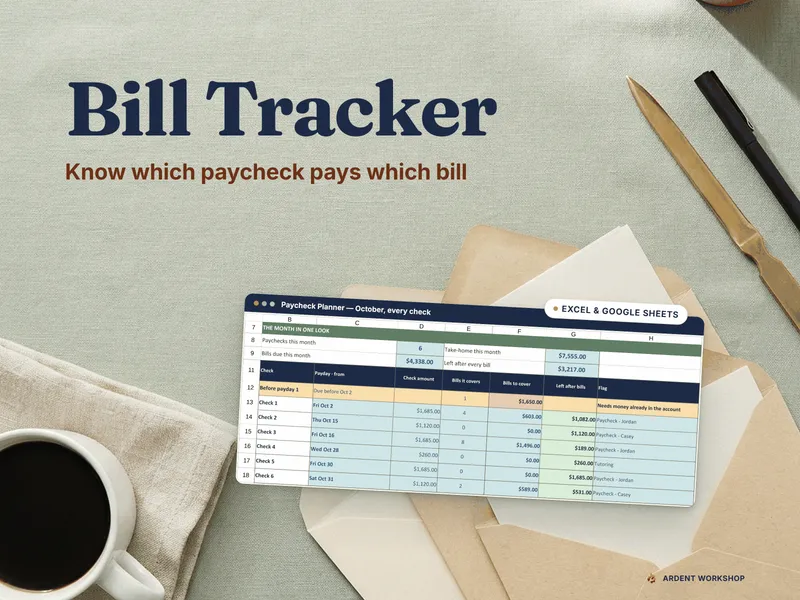
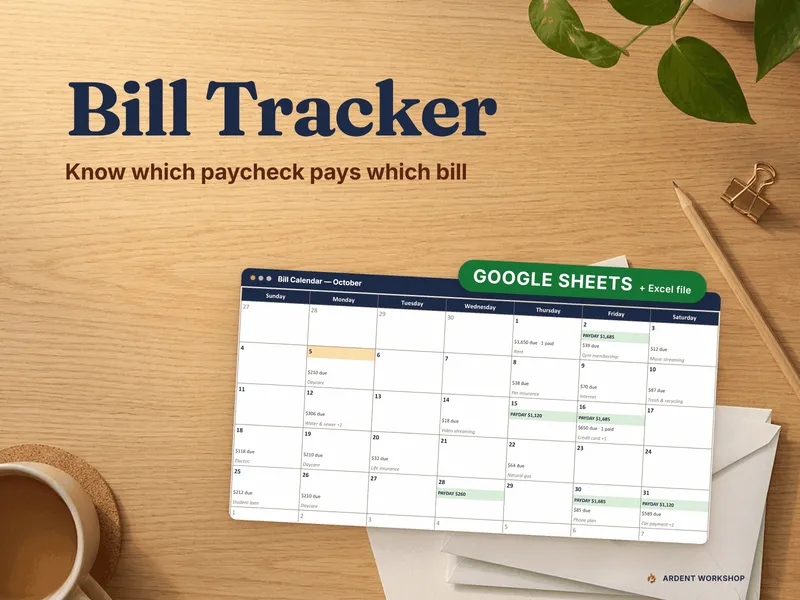
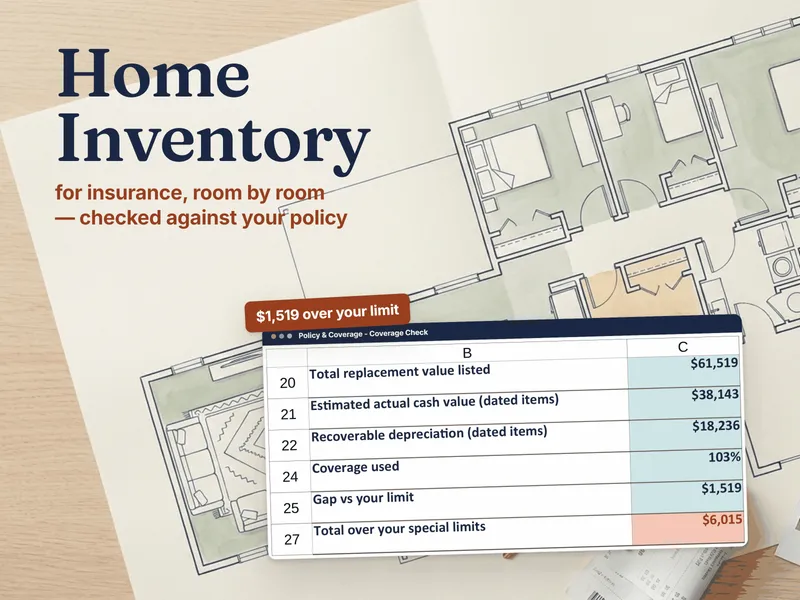
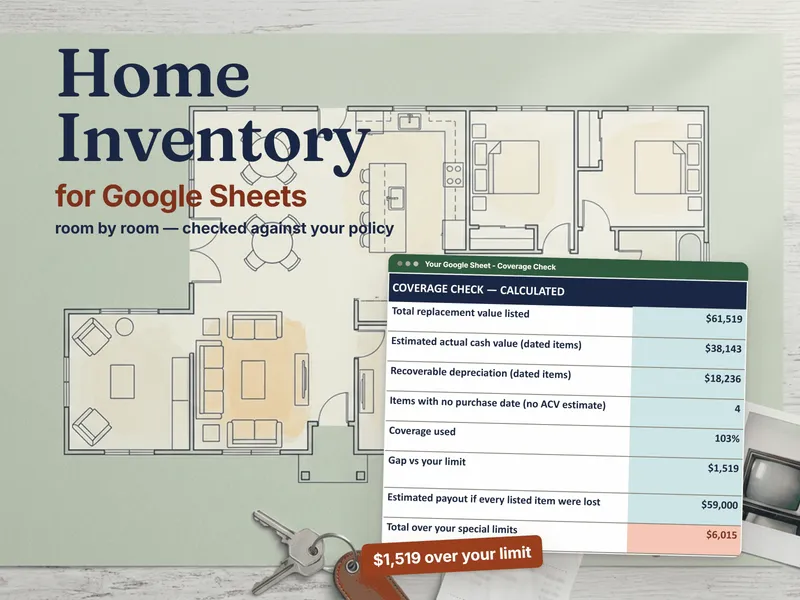
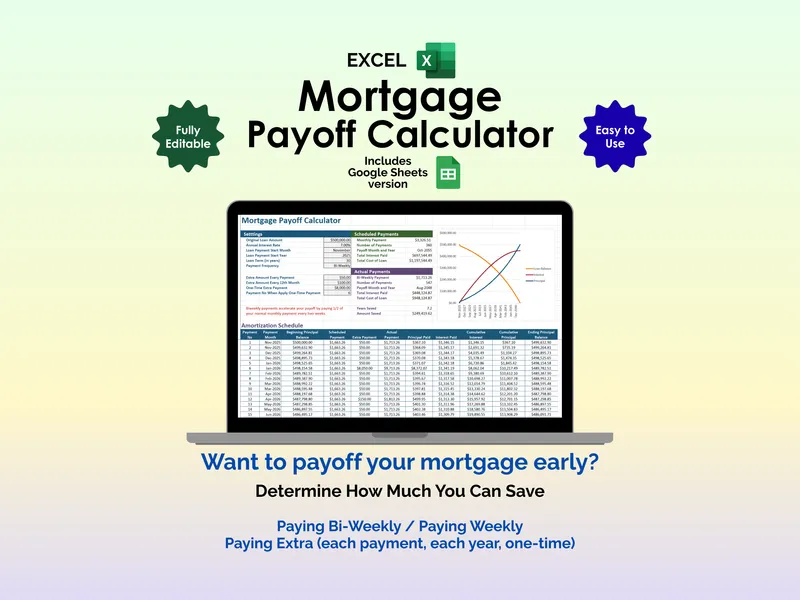
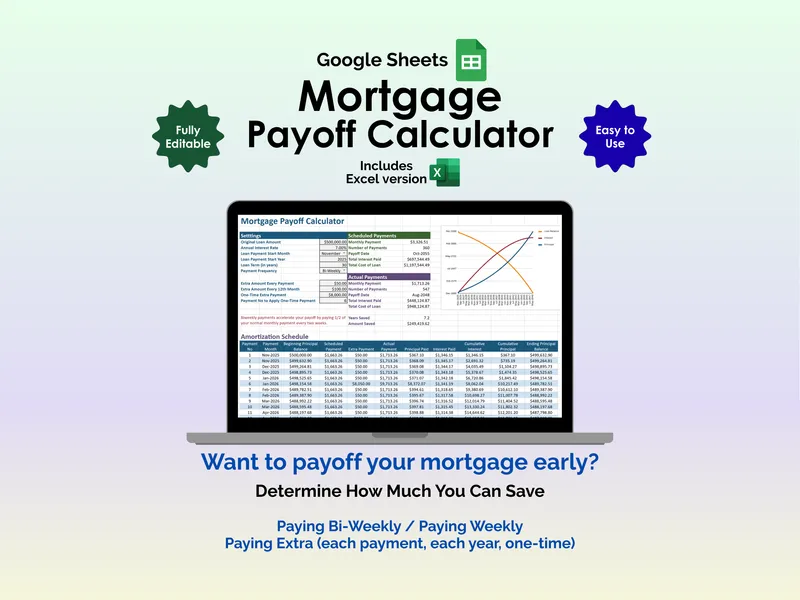
It's also why many of our templates ship in both editions, each built natively for its app rather than one file forced to open in the other. Browse the Excel templates and Google Sheets templates hubs to see the full libraries, or compare the three-way picture in Excel vs Google Sheets vs Notion.
When a spreadsheet isn't the answer at all
Both apps hit a wall when a hobby becomes an operation — when you're tracking inventory across channels, costing recipes that change weekly, or reconciling orders you can't keep in your head. At that point the question stops being Excel vs Sheets and becomes spreadsheets vs purpose-built software. If you're not there yet, a good template in either format will carry you a long way.
Frequently asked questions
- Is Excel or Google Sheets better for beginners?
- Google Sheets is usually easier to start with: it's free with any Google account, runs in the browser with nothing to install, and autosaves to the cloud so there's no file to lose. Excel has a steeper learning curve but rewards it with more power once you're handling large datasets or advanced formulas.
- Can Google Sheets open an Excel (.xlsx) file?
- Yes. Google Sheets can import and edit .xlsx files, and Excel can open files exported from Sheets. Most everyday formulas, formatting and charts survive the round trip, though very advanced Excel features (complex macros, some array functions, pivot-table styling) can shift or break on import.
- Which is better for a small business?
- It depends on how you work. Choose Google Sheets if multiple people need to edit the same file at once or you live on a phone and tablet. Choose Excel if you work mostly solo, build heavy financial models, or need to handle tens of thousands of rows without slowdown. Many of our small-business templates ship in both so you don't have to commit blind.
- Do Ardent Workshop templates work in both Excel and Google Sheets?
- Many of them ship in matched Excel and Google Sheets editions built natively for each app — not one file forced to open in the other. The product page lists the format, and where a sibling edition exists it's linked so you can pick the one that fits your setup.